Gummy Playground Controls
Master movement, tool hotbars, and build placement across every Roblox device.
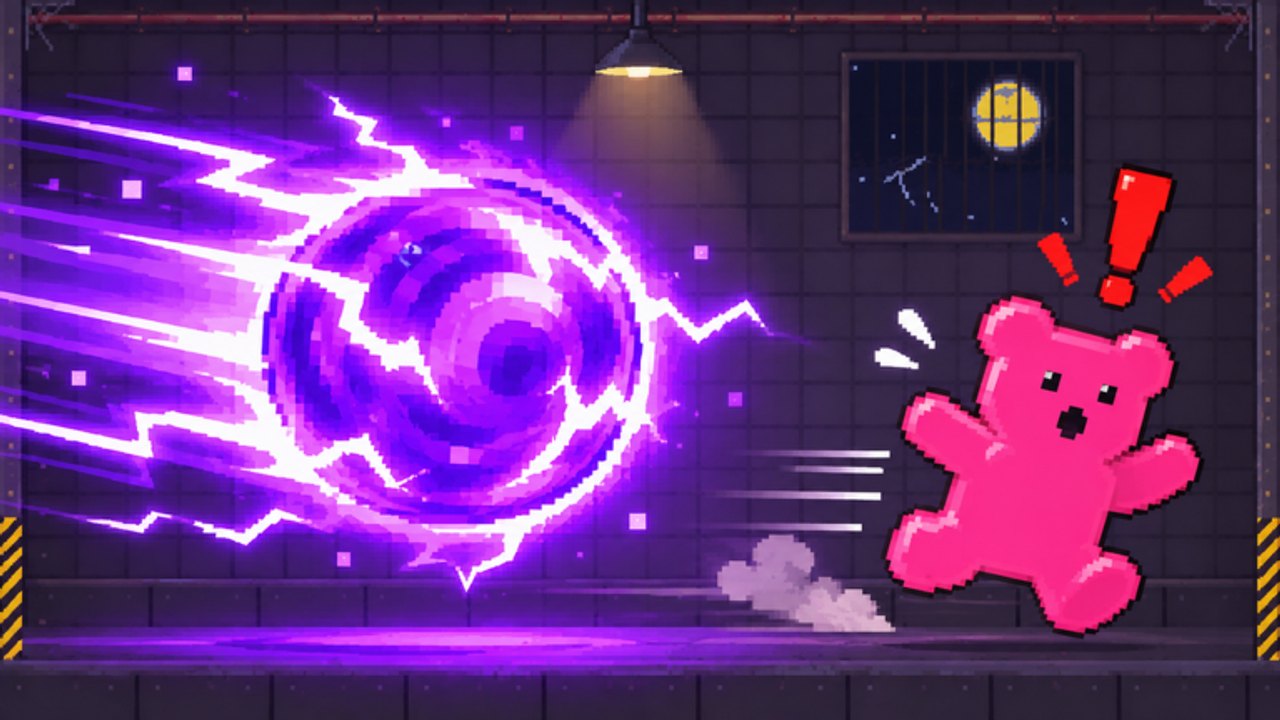
Soft-body games feel unfair until your fingers know the timing. Gummy Playground runs on Roblox across phone, tablet, computer, and console, so this controls guide covers shared actions and the small differences that break stunts when you switch devices mid-session.
Core actions (all platforms)
| Action | What it does in jelly physics |
|---|---|
| Move | Walk / run your gummy; stretch follows momentum |
| Jump | Short hop — combine with trampolines for height |
| Equip tool | Selects sword, blaster, freeze, build piece, etc. |
| Use / fire | Activates the equipped power or places a build |
| Aim | Directs blasts, freezes, and many area movers |
| Rotate build | Turns ramps and pads before confirming place |
| Delete / undo build | Clears a mis-dropped piece quickly |
| Open shop / gifts | Daily rewards, spins, codes entry |
| Open book | Tracks tools tried and stunts found |
Exact button prompts appear in the Roblox touch / gamepad UI. If a prompt conflicts with a chat bind, rebind in Roblox settings before a serious stunt attempt.
PC keyboard and mouse
- WASD — locomotion. Strafe while charging a blaster so you are not a static target.
- Space — jump. Tap, do not hold, before a trampoline hit so you do not cancel stretch.
- Number keys / scroll — hotbar. Keep freeze on
1and launcher on2for muscle memory. - Left click — primary use. For freeze tools, click when the reticle is centered on the jelly torso, not the stretched arm.
- Right click / R — common rotate binding for builds (confirm in your UI).
- Backspace / X — delete last prop in many sandbox templates; hover the piece if delete is click-based.
- Esc — Roblox menu; use it to leave a griefed lobby fast.
Mouse aim matters for black holes and blasters. Lower mouse sensitivity slightly if soft bodies keep sliding out from under your crosshair during wobble frames.
Mobile touch
Mobile is fully supported, but jelly stretch can hide on-screen buttons.
- Play in landscape with the tool wheel on your dominant side.
- Move the dynamic thumbstick with one thumb; tap tools with the other.
- For precise freeze shots, short-tap instead of holding — holds sometimes trigger camera drag.
- When placing ramps, zoom out one notch so you see both ends of the piece.
- If the gifts icon sits under a finger, claim rewards immediately after spawn before builds clutter the HUD.
Performance tip: drop graphics quality one step if collisions stutter when four players open black holes together. Soft-body sims are heavier than rigid ragdolls.
Gamepad / console
- Left stick moves; right stick aims where the tool supports aiming.
- Face buttons handle jump and confirm place — watch the on-screen legend the first time you enter build mode.
- Shoulder buttons cycle tools faster than the D-pad when the hotbar is long.
- Keep vibration on while learning; impact feedback helps you feel successful launches without staring at the kill feed.
Console lobbies still cap at six players, so communication via Roblox chat text or party voice (where available) prevents accidental demolitions of someone’s course.
Build mode discipline
Building is where most control mistakes happen:
- Enter build / equip a piece from the construction set (wood, metal, rope, trampoline).
- Preview placement — if the ghost clip intersects another prop, nudge before confirming.
- Rotate in 90-degree steps until the ramp arrow faces the open lane you want.
- Confirm place, then immediately test with a short run before adding the next piece.
- Delete failures instead of stacking overlapping pads that confuse physics.
More advanced course design is covered in Building and Stunts.
Tool timing cheat sheet
- Freeze — fire at the apex of a stretch for dramatic statues.
- Blaster / sword — fire just after freeze lands, not before.
- Black hole — plant, step back, then cancel or escape so you are not the first snack.
- Tornado — walk into the edge for lift; center can trap you longer than you expect.
- Tsunami — face the direction you want the whole lobby to travel; announce it in chat if friends are mid-build.
Rank which tools deserve hotbar slots on the tier list. Learn what each power actually does in Tools and Powers.
Accessibility and comfort
- Enable shift-lock equivalents only if you already use them in other Roblox games — jelly cameras can feel floaty with lock on.
- Increase UI scale on tablet so the codes box remains tappable.
- Take breaks during long fling sessions; rapid camera motion plus soft-body bounce can cause discomfort.
Practice routine (10 minutes)
- Spawn, claim gifts (daily rewards).
- Hotbar freeze + blaster; land five intentional combos.
- Place one ramp and one trampoline; clear it five times without tools.
- Add one area mover and repeat.
- Delete the course so the next lobby does not inherit your mess unless they ask to keep it.
Once controls feel boring, you are ready for creative stunts. Return to Getting Started if you still need the big-picture checklist, or jump to players for multiplayer control agreements.
Frequently Asked Questions
Quick answers for jelly physics, codes, and tools.
Can I play Gummy Playground on mobile?
Yes. Use landscape orientation, keep the tool wheel reachable, and lower graphics if soft-body collisions stutter.
How do I place ramps and trampolines?
Equip a build piece, preview the ghost placement, rotate until the ramp faces open space, confirm, then test-run before adding more pieces.
Why does freeze miss on PC?
Soft bodies wobble. Aim at the torso during a stable frame and fire a short click instead of spraying while the jelly is fully stretched.
Where is the codes box on the HUD?
Inside the shop or rewards panel. Open it right after spawn — see the Codes hub for redemption steps.
My soft-body collisions stutter on phone. What helps?
Lower graphics one step, play in landscape, and avoid stacking multiple black holes in a tiny cluttered floor.